
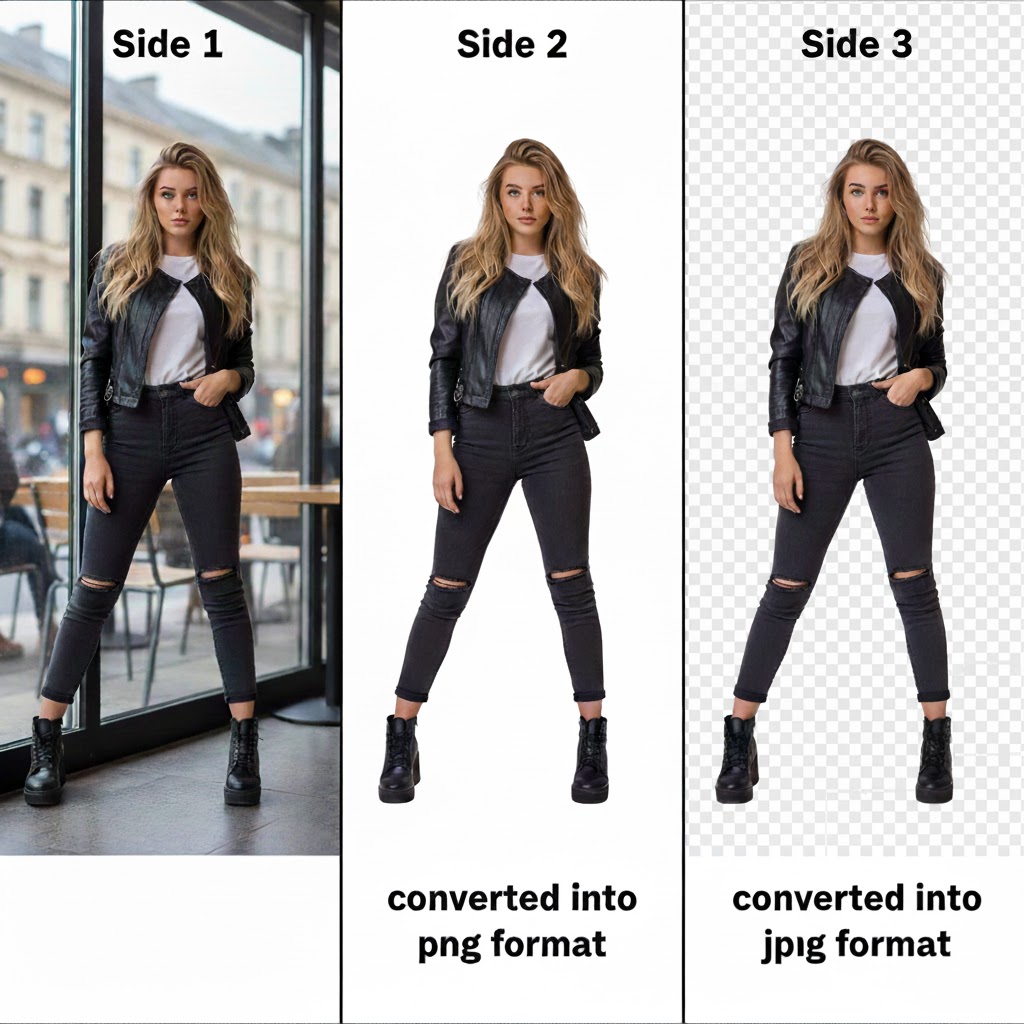
7 Smart Background Remover PNG vs JPG Tips
Background Remover PNG files are often the first choice after removing an image background—but choosing the right format is more than a technical detail. It affects image quality, website speed, storage costs, and how professional your brand looks online. Whether you’re creating e-commerce visuals, social media posts, or marketing assets, understanding when to use Background Remover PNG versus Background Remover JPG can save you time and money.
Below are 7 smart, practical tips to help you decide, especially when using SnapCutBG.com, a fast and flexible AI background remover.
1. Use PNG When Transparency Matters
If your image needs to sit on different backgrounds, Background Remover PNG is unbeatable. It supports true transparency with smooth edges, making it ideal for product images, logos, portraits, and overlays.
Best use cases:
E-commerce products placed on multiple background colors
Profile photos for websites or apps
Graphics for videos or presentations
SnapCutBG’s precise edge detection and color range selection make PNG exports especially clean and professional.
2. Choose JPG for Speed and Smaller File Sizes
JPG files use lossy compression, which dramatically reduces file size. Once you’ve applied a solid or photographic background inside SnapCutBG, JPG becomes the more efficient option.
Best use cases:
Social media posts
Website banners
Email marketing images
For most web uses, export JPG at 80–90% quality to balance clarity and performance.
3. Match Format to Your Final Platform
Different platforms reward different formats.
Web with transparency: PNG
Web without transparency: JPG (75–85% quality)
Instagram: 1080×1080 or 1080×1350, JPG
LinkedIn headers with logos: PNG
Print: High-quality JPG or PNG at 300 DPI
Always size images to the platform’s actual display needs—oversized images slow pages and hurt SEO.
4. Leverage SnapCutBG’s Advanced Features
SnapCutBG isn’t just about removing backgrounds. Its background color range selection preserves subtle transitions—perfect for PNG exports where transparency quality matters.
When you upload a custom background:
Photographic background → export as JPG
Solid color or minimal design → consider PNG for sharper edges
This flexibility lets you export multiple versions from the same cutout.
5. Don’t Overuse Maximum Quality
One of the most common mistakes is exporting everything at maximum quality.
PNG for everything = slow websites
100% quality JPG = unnecessarily large files
Instead, preview your image at 100–200% zoom and reduce quality until differences are invisible. SnapCutBG’s export controls make this easy.
6. Think About SEO and Page Speed
Image optimization directly impacts search rankings.
SEO best practices:
Use descriptive filenames (e.g.,
modern-chair-transparent.png)Add meaningful alt text
Compress images without visible quality loss
Serve correctly sized images
Fast-loading, well-optimized images improve both user experience and Google performance.
7. Export Strategically—Not Just Once
There’s no single “correct” format. Smart creators export multiple versions:
PNG with transparency for websites
JPG with background for social media
High-resolution version for print
SnapCutBG makes this workflow simple—remove once, export many times.
Common Mistakes to Avoid
Re-saving JPGs repeatedly (causes quality loss)
Using PNG for large photo-heavy pages
Ignoring final display size
Not checking edges after export
Always test images in their real environment before publishing.
Frequently Asked Questions (FAQ)
Q1: Is Background Remover PNG always better after background removal?
No. PNG is best when you need transparency. If the background is final, JPG is usually more efficient.
Q2: What’s the best JPG quality setting for web use?
Around 80–85% is ideal for most websites.
Q3: Can I export both PNG and JPG from SnapCutBG?
Yes. SnapCutBG allows multiple exports from the same processed image.
Q4: Does image format affect SEO?
Indirectly, yes. File size impacts page speed, which Google considers in rankings.
Q5: Which format is best for e-commerce?
PNG for transparent product images; JPG for white or lifestyle backgrounds.
Final Thoughts
Choosing between PNG and JPG isn’t about rules—it’s about intent. PNG offers flexibility, while JPG delivers efficiency. With SnapCutBG.com, you don’t have to compromise. You get clean cutouts, smart background tools, and full control over how your images are delivered.
👉 Try SnapCutBG today and export smarter images that look great and load fast.
Helpful Non-Competitor Resources
Google PageSpeed Insights – Image performance basics
W3C Image Formats Overview
JPEG Official Information Site
Google Image SEO Best Practices
📌 Helpful Resources (Non-Competitor Outbound Links)
Google Image SEO Best Practices
Learn how Google evaluates images for search rankings, filenames, alt text, and performance.
👉 https://developers.google.com/search/docs/appearance/google-imagesGoogle PageSpeed Insights
Understand how image size and format impact website speed and Core Web Vitals.
👉 https://pagespeed.web.devW3C – PNG Specification Overview
Official documentation explaining PNG transparency and technical structure.
👉 https://www.w3.org/TR/PNG/JPEG Official Information Site
Learn how JPG compression works and when it’s most effective.
👉 https://jpeg.org/jpeg/MDN Web Docs – Image Formats for the Web
A trusted developer guide comparing PNG, JPG, WebP, and other formats.
👉 https://developer.mozilla.org/en-US/docs/Web/Media/Formats/Image_types