Photo Editing FAQ
General Questions About Free Online Editing Tools
This section of our Photo Editing FAQ covers the fundamentals of using web-based, no-download photo editors.
1. What are free online image editing tools?
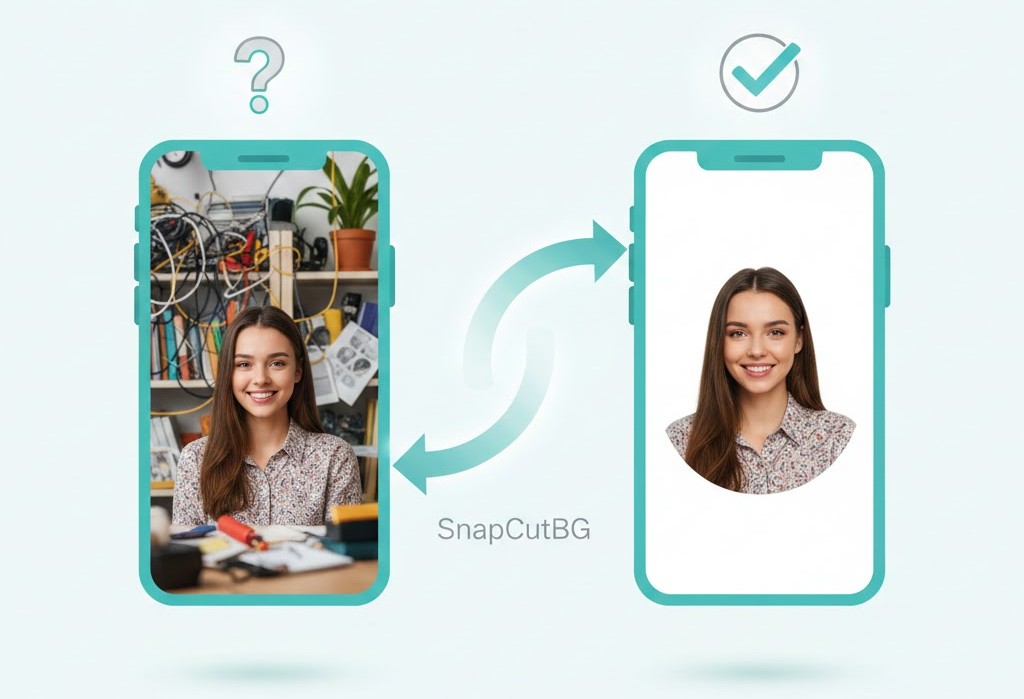
Answer: They are web-based applications that run in your browser, allowing you to perform tasks like removing backgrounds, enhancing quality, converting formats, and resizing images without installing software. Popular functions include using an AI background remover, a photo quality enhancer, and a batch image converter.
2. Are online photo editors really free with no hidden fees?
Answer: Yes, truly free platforms like ours offer complete tools—such as a transparent background maker and PDF merger—without subscriptions, watermarks, or hidden costs. You can access a free online photo editor and free PDF tools indefinitely.
3. Is using an online photo editor safe for my images and privacy?
Answer: Reputable sites use secure cloud processing with encrypted file transfers. Your uploads are handled with a privacy-safe upload policy and are automatically deleted from servers after a short time, ensuring your product photos or personal images are never stored or misused.
4. Do I need to create an account or sign up to use these tools?
Answer: No, the best free online editors operate with no sign-up required. You can upload, edit, and download instantly as a guest, making it ideal for quick tasks like removing a background from a picture or converting JPG to WEBP.
5. What are the main advantages over desktop software like Photoshop?
Answer:The key advantages are no download required, instant access from any device, and no learning curve for specific tasks. For quick jobs like creating a passport photo, resizing for social media, or merging PDFs, online tools are faster and more efficient.
6. Can I use these tools on my mobile phone or tablet?
Answer: Absolutely. Any quality free online image editing tool suite is built on a responsive design and is fully mobile-friendly. You can remove image backgrounds, enhance selfies, or convert files directly from your smartphone’s browser.
7. What is the typical file size limit for uploads?
Answer: Limits vary but are designed for common use cases. For instance, a background remover for product photos might support files up to 10-20MB, which is sufficient for high-resolution e-commerce image editing. Always check the tool’s page for specifics.
8. What image and document formats do you support?
Answer: Most free online editors support all major formats: JPG, PNG, WEBP, and PDF. This ensures compatibility for tasks ranging from PNG maker conversions to PDF to JPG extraction.
Background Removal Tool & Photo Editing FAQ
This part of the Photo Editing FAQ demystifies AI-powered background removal.
9. How does an AI background remover work?
Answer: The tool uses machine learning to analyze your photo, differentiate between the main subject and background, and automatically remove the background from the image free. It’s excellent for creating product cutouts or transparent PNGs.
10. What’s the best way to get a clean cutout, especially with hair or fur?
Answer: Use a high-contrast photo where the subject stands out. The AI background remover handles complex edges best when there’s a clear difference. For fine details, a refinement brush will automatically touch up edges after the automatic process.
11. Can I remove a background and replace it with a specific color, like white?
Answer: Yes. After the background removal process, you can typically fill the new transparent layer with any color. This is a key feature for creating a white background for product image listings on Amazon or Etsy.
12. Is this a good remove.bg alternative free tool?
Answer: Yes, a capable AI background remover provides the same core functionality—creating transparent backgrounds—often with additional features like manual editing or higher resolution limits without requiring an account, making it a strong remove.bg alternative free.
13. What image quality can I expect after background removal?
Answer: A professional free background remover will output a high-resolution image, preserving the original quality of your subject. The final file is ideal for professional headshots or marketing materials.
Image Enhancer & Photo Editing FAQ
Here, our Photo Editing FAQ explains how to improve photo quality automatically.
14. What can an AI photo enhancer fix?
Answer: It can correct blurry pictures, brighten dark photos, reduce digital noise, and sharpen details. Think of it as an automatic photo quality improver and portrait editor in one.
15. Will it make my old, grainy photos look new?
Answer: No, that’s not the primary use, we offer you to optimize image brightness, contrast, and making grayscale image. However some old photo restore function within an enhancer can dramatically reduce cracks and grain while improving contrast, acting as a free photo upscaler for cherished memories.
16. Can I enhance a photo to make it print-ready?
Answer: Absolutely. By improving resolution and sharpness, the tool prepares images for printing. This is useful for making professional headshots or enhancing real estate photos for brochures.
17. Is it possible to enhance just one part of a photo?
Answer: Most basic AI enhancers apply corrections globally. For selective edits, you would need a more advanced manual photo editor online. However, for overall improvement of product photos or selfies, global enhancement is very effective.
WEBP Converter , Image Compressor & Photo Editing FAQ
This Photo Editing FAQ section covers modern format conversion and optimization.
18. Why should I convert my images to WEBP format?
Answer: WEBP format provides superior compression, making files much smaller than JPG or PNG while maintaining quality. This is crucial for website speed optimization and SEO ranking factors, as faster sites rank higher.
19. Will converting to WEBP reduce the visual quality of my image?
Answer: A good image to WEBP converter uses smart compression that minimizes quality loss. The reduction is often imperceptible to the eye, making it perfect for website graphics and social media preparation.
20. Can I batch convert multiple images at once?
Answer: Yes, look for a tool that supports batch conversion. A batch image converter saves tremendous time when optimizing an entire e-commerce product gallery or a set of blog images.
21. Do all web browsers support WEBP images?
Answer: All modern browsers (Chrome, Firefox, Safari, Edge) fully support WEBP. It’s now the standard for modern web development and online store imagery.
PDF Tools (Merger & to Image Converter) Photo Editing FAQ
Our Photo Editing FAQ now addresses common questions about handling PDF documents.
22. How do I combine multiple PDF files into one?
Answer: Use a PDF merger. Simply upload the files, arrange them in your desired order, and the PDF combiner tool will create a single, organized document. It’s ideal for assembling reports or portfolio documents.
23. Can I convert a PDF page into a high-quality image for my website?
Answer: Yes, a PDF to JPG converter is designed for this. It extracts a page and saves it as a high-resolution image, perfect for creating social media graphics or featuring document excerpts in blog posts.
24. Is there a limit to the number of pages or PDFs I can merge?
Answer: Most free PDF merger tools have a generous limit, such as 50 pages or 10 separate files, which is sufficient for most business documents or student projects. But we offer you unlimited services.
Image Resizer, Social Media Cropper & Photo Editing FAQ
This segment of the Photo Editing FAQ is about adapting images for different platforms.
25. How do I resize an image without distorting it?
Answer: Use an image resizer that lets you lock the aspect ratio. This automatically adjusts the height when you change the width, keeping your profile pictures or product shots from looking stretched.
26. What are the correct image sizes for Instagram, Facebook, and LinkedIn?
Answer: A dedicated social media resizer will have presets for each platform: Instagram posts (1080x1080px), Instagram stories (1080x1920px), Facebook cover photos (820x312px), and LinkedIn company banners (1128x191px). Using these ensures perfect display.
27. Can I crop and resize many images at the same time?
Answer: No we don’t offer a batch resizer, however it allows you to upload multiple photos and apply the same dimensions or crop ratio to all, streamlining the workflow for social media managers.
Passport, ID Photo Maker & Photo Editing FAQ
The final part of this Photo Editing FAQ guides you through creating compliant official photos.
28. Can I really make a compliant passport photo at home?
Answer: Yes. A passport photo maker online guides you through taking a selfie against a plain wall. It then removes the background, adjusts sizing to official government photo lab specifications, and arranges it on a standard 4×6-inch print template.
29. What are the common reasons for passport photo rejection?
Answer: Reasons include incorrect size, improper background (not plain white or off-white), shadows on the face, or incorrect head size. An ID photo tool automates these specifications to minimize rejection risk.
30. What formats can I download my edited passport photo in?
Answer: You can typically download the final sheet as a JPG or PNG file, ready to print at any pharmacy or photo kiosk that offers passport photo services.
Advanced Workflow & Technical Questions
This concluding part of our Photo Editing FAQ ties all the tools together.
31. Can I use these tools together for a complete project workflow?
Answer: No, but you can use absolutely free all tools for your perfect image. For example, an e-commerce entrepreneur can: 1) Enhance a product photo, 2) Remove its background, 3) Resize it for web and social media, and 4) Convert it to WEBP.
32. Where can I learn more about professional image editing principles?
Answer: For foundational knowledge, you can explore authoritative, non-commercial resources. Here are two highly recommended outbound links:
- The Library of Congress: Format Guidelines for Digital Images: This resource provides authoritative preservation guidelines on file formats, resolution, and metadata, helping you understand the long-term importance of choosing the right format (like WEBP vs. PNG) for your needs. (https://www.loc.gov/preservation/digital/formats/)
33. Can I edit a transparent PNG after background removal?
Answer: Yes. Once you have a transparent background image from the AI remover, you can use other tools to resize or convert it. For detailed pixel-level editing, you would need a dedicated PNG editor, but for quick adjustments, the core suite is sufficient.
34. What's the difference between lossy and lossless compression in your tools?
Answer: Our image compressor for WEBP typically uses lossy compression for maximum size reduction, ideal for websites. For PNG maker outputs, compression is lossless, preserving every pixel perfectly for professional design work where quality is paramount.
35. How do I handle editing photos in bulk for my online store?
Answer: No don’t offer batch processing features in tools like the image resizer and WEBP converter or etc which allows you to optimize product photos efficiently, ensuring consistent size and format across hundreds of items for your e-commerce platform.
36. Do these tools preserve the EXIF metadata (like camera details) from my photos?
Answer: Most online tools for speed and privacy will strip out EXIF metadata during processing. If preserving camera data is crucial, you would need specialized photo metadata software. Our tools focus on visual editing and compression.
37. I need to create a document with both images and text. Can I do that here?
Answer: For merging existing images into a PDF, you could convert images to a PDF and then merge them. However, for designing new documents with text overlays, a dedicated free online graphic design tool would be more suitable.
Troubleshooting , Quality Assurance & Photo Editing FAQ
This part of the Photo Editing FAQ helps you solve common issues and achieve the best results.
38. Why is the background remover not working well on a complex image?
Answer: The AI background remover works best with clear contrast. If the subject and background have similar colors, try using the manual touch-up tools often provided. For very complex scenes, taking a new photo with a plain, contrasting background yields the best product cutout.
39. My enhanced photo looks over-processed. What can I do?
Answer: Many AI photo enhancers offer adjustable intensity sliders. Look for settings to control the strength of sharpening or brightness adjustment. Starting with a lower enhancement level often gives a more natural result for portrait editing.
40. The converted WEBP file looks pixelated. What went wrong?
Answer: This can happen if the original image was very low resolution. The image to WEBP converter optimizes the existing file but cannot add true detail. Always start with the highest quality source image for web graphics or social media posts.
41. My merged PDF file is too large. How can I reduce its size?
Answer: After using the PDF merger, you can use a dedicated PDF compressor tool (often a separate utility) to reduce the file size. This is different from an image compressor and is essential for emailing large business documents.
42. My resized image for Instagram looks blurry after cropping.
Answer: This usually means the original photo’s resolution was too low for the required dimensions. Ensure you are not enlarging a small image. Use a high-resolution source photo for social media resizing to maintain crispness in your Instagram stories or Facebook ads.
43. My passport photo was rejected for "shadows." How can I avoid this?
Answer: When using the passport photo maker online, take your selfie in soft, even front lighting—avoid overhead lights that create shadows under your eyes or chin. The biometric photo tool can correct color but cannot fix harsh shadow lines that violate official rules.
Comparisons, Capabilities & Photo Editing FAQ
This section of our Photo Editing FAQ clarifies what you can and cannot do with the free suite.
44. How do these free tools compare to paid software like Adobe Photoshop?
Answer: For targeted tasks—background removal, Image resizing, format conversion—these free tools offer comparable one-click results. Photoshop excels in complex, layered manual design. Our free online photo editor suite is for efficiency and specific jobs, not full-scale creative artwork.
45. Can I remove a watermark from an image with these tools?
Answer: No. Watermark removal typically requires in-painting tools that replicate missing pixels, which is beyond the scope of ethical free online image editing tools designed for legitimate edits like photo enhancement or cropping.
46. Is there a tool to change the color of an object in my photo?
Answer: Object recolorization requires selective editing features found in more advanced software. Our image enhancer can adjust overall color balance and saturation, but cannot isolate and change individual objects.
47. Can I create animated GIFs with these tools?
Answer: Creating GIFs requires frame sequencing and animation timing, which is a different function. These are static image editing tools and document converters. For making GIFs, you would need a dedicated animated GIF maker.
Final Questions About Access & Use
To conclude our comprehensive Photo Editing FAQ, here are the final operational details.
48. Are there any usage limits per day?
Answer: We offer limitless services, however, truly free tools often have generous fair-use limits, such as a number of processing jobs per day, to ensure service stability for all users. These limits are almost always sufficient for individual and small business needs for product photo editing or social media preparation.
49. Can I use these tools for commercial purposes?
Answer: Yes. The images and documents you create using these free online image editing tools belong to you and can be used for commercial projects, marketing materials, and e-commerce listings. Always review the site’s Terms of Service for formal confirmation.
50. Where can I learn more advanced techniques for image optimization?
Answer: To deepen your technical knowledge beyond this Photo Editing FAQ, consider these authoritative, non-commercial resources:
- MDN Web Docs: Image Optimization: This resource from the Mozilla Developer Network provides excellent, technical deep-dives into modern image formats, responsive image techniques, and performance best practices for developers and serious content creators. (https://developer.mozilla.org/en-US/docs/Learn/Performance/Multimedia)